Rental Storage
Overview
No Controlled Data
This service is not intended for HIPAA or otherwise controlled data. Please see Secure HPC for more information.
We offer a rental storage solution that has less performance and lower cost than our primary all-flash array making it affordable for research data. This storage array is located in the Research Data Center and is mounted on our data transfer nodes and compute nodes.
At a Glance
-
Storage Type
Long term rental space
-
Pricing
$47.35 per terabyte per year
-
Maximum Duration
Unlimited
-
Maximum Size
Up to 20 TB can automatically be requested through the user portal. Groups requiring additional space can submit a request by opening a ticket.
-
Storage Location
/rental/<pi_netid>, accessible on the file transfer nodes and Puma compute nodes. -
Managed By
Faculty members (PIs) and authorized delegates
Benefits of Rental
- Your capacity is not limited like
/xdisk. - Your data does not expire like
/xdisk. - You can use
/rentalas the primary location for your research data. We strongly recommend that you do not run your compute directly from/rentaldue to performance limitations. See the Best Practices for advice on how to manage your workflow. - The rental rates are reasonable at $47.35 per terabyte per year.
- You can use simple commands like
cpandmvto transfer data between filesystems.
Pricing
The cost for rental storage space is $47.35 per terabyte per year. PIs will need to provide their KFS account number when requesting an allocation. Rental allocations are billed at the end of each Fiscal Year and are not prorated. This means the charges will reflect the maximum amount of storage space requested for the fiscal year.
Allocations up to 20 TB can automatically be requested by a PI through our user portal. For allocations larger than 20 TB, contact our consulting team for assistance.
Data Locality and Management
You will find your rental allocation space under /rental/<pi_netid> where <pi_netid> is the NetID of the PI who requested the space. This space is accessible on our file transfer nodes and Puma compute nodes.
The rental array is not as performant as our all-flash primary array so we strongly discourage running compute directly from /rental due to performance limitations. Instead, we recommend using a temporary xdisk as scratch space for jobs. This is especially important for high I/O workloads. We have more specifics in our Best Practices documentation.
The rental array is not backed up. We do keep nightly snapshots so we may be able to retrieve recently lost data. If you accidentally delete a file, contact us promptly to ensure the best chances of data retrieval.
Data Transfers
Rental allocations are accessible on the file transfer nodes and compute nodes, allowing files to be copied (e.g. with mv or cp) directly between your rental allocation and the rest of the HPC filesystem (i.e. /groups, /xdisk, and /home).
We also provide a Globus endpoint for rental storage. This endpoint is distinct from the general HPC endpoint and can be accessed as UA Rental Storage Filesystem See our Globus documentation for more information on this graphical file transfer tool.
Managing a Rental Allocation Through the Portal
Requesting an Allocation
Tip
It can take a few days to process the request as it has to route through the Financial Services Office (FSO). You will receive an email confirmation once it is complete.
-
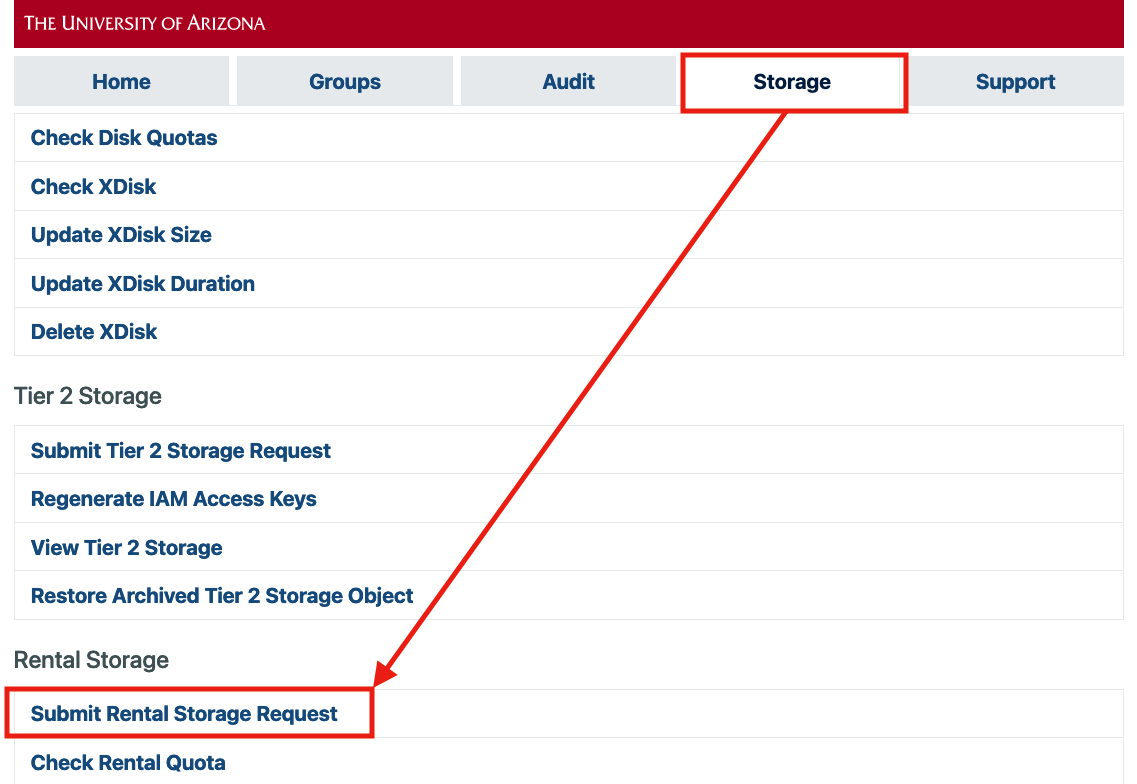
PIs or Group Delegates can request rental storage on behalf of their group. To do so, navigate to the User Portal in your browser, choose the Storage tab, then select Submit Rental Storage Request under the Rental Storage heading.
-
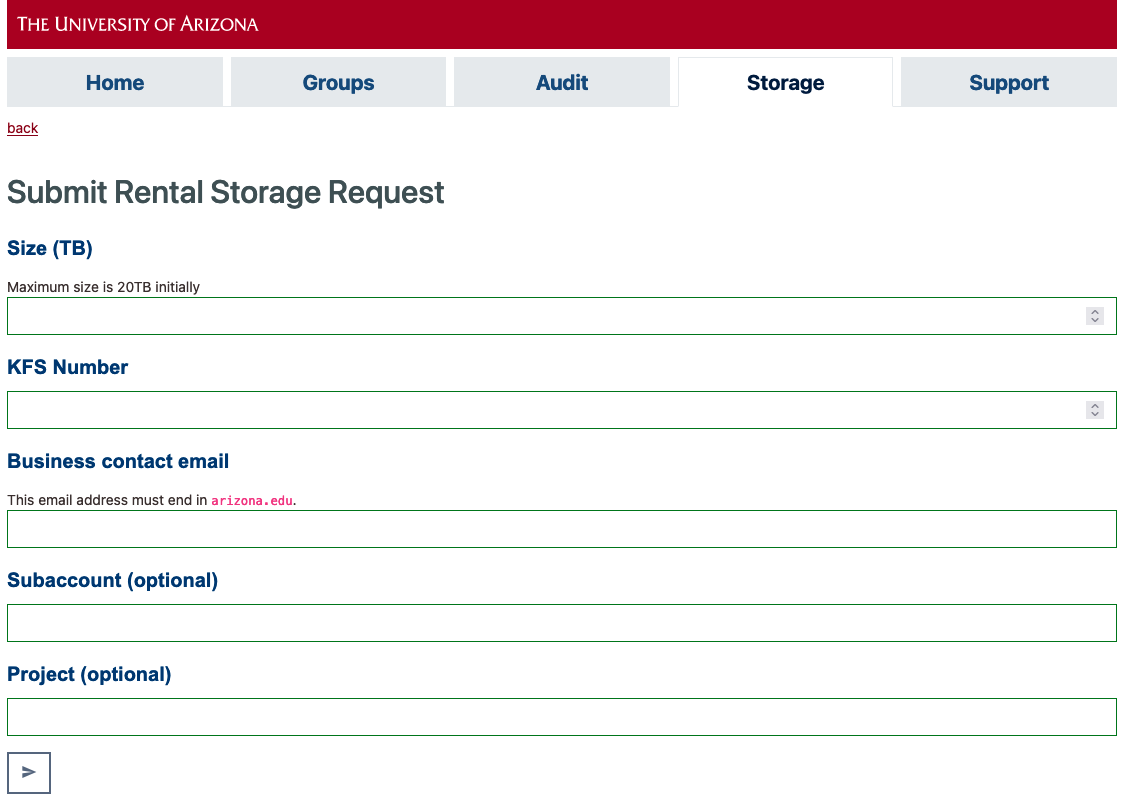
This will open a web form. Add your KFS number under KFS Number(1) and the email address for the Department's financial contact under Business contact email. There will also be two optional fields: Subaccount and Project. These are used for tagging/reporting purposes in KFS billing. You can safely leave these entries blank if you're not sure what they are. Once you have completed the form, click .
- A KFS number is used for accounting purposes and used by your Department's finance specialist. If you do not know your KFS number, contact your department's financial office.
-
Once your space has been created, you will receive an email notification that it is ready for use.
Resizing Your Allocation
Warning
Resizing allocations up to 20TB can be done the user portal. For allocations larger than 20TB, contact our consulting team for help.
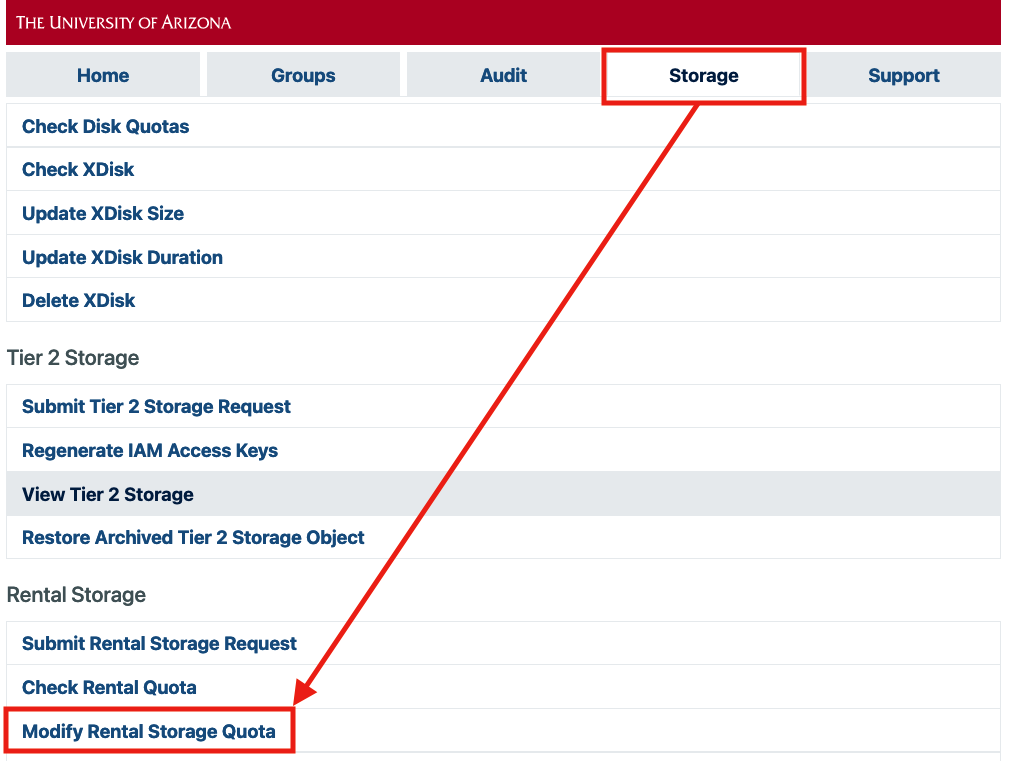
Your rental allocation can be resized through the user portal by navigating to the Storage tab and selecting Modify Rental Quota under the Rental Storage heading.
Checking Your Usage
You can check your allocation's size and current usage either through the user portal or on the command line.
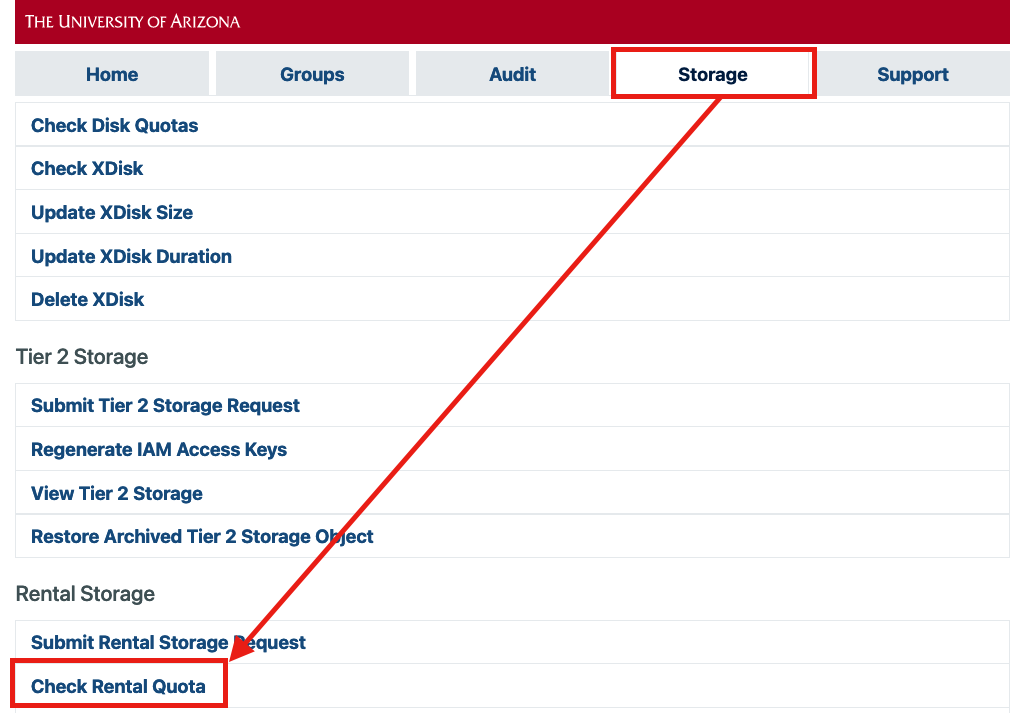
In the user portal, navigate to the Storage tab and select Check Rental Quota from under the Rental Storage heading. This option is only available to PIs and group delegates.
From an HPC login node or on a filexfer node, enter the command uquota, for example:
Deleting Your Allocation
PI's can submit a deletion request to remove their rental storage through our user portal.
Prior to submitting a deletion request, you must:
- Create a backup of any data you need to keep.
- Delete the data stored in your
/rentalspace.
After completing the steps above, you may submit a deletion request by following the steps below:
-
Go to portal.hpc.arizona.edu and navigate to the Storage tab.

-
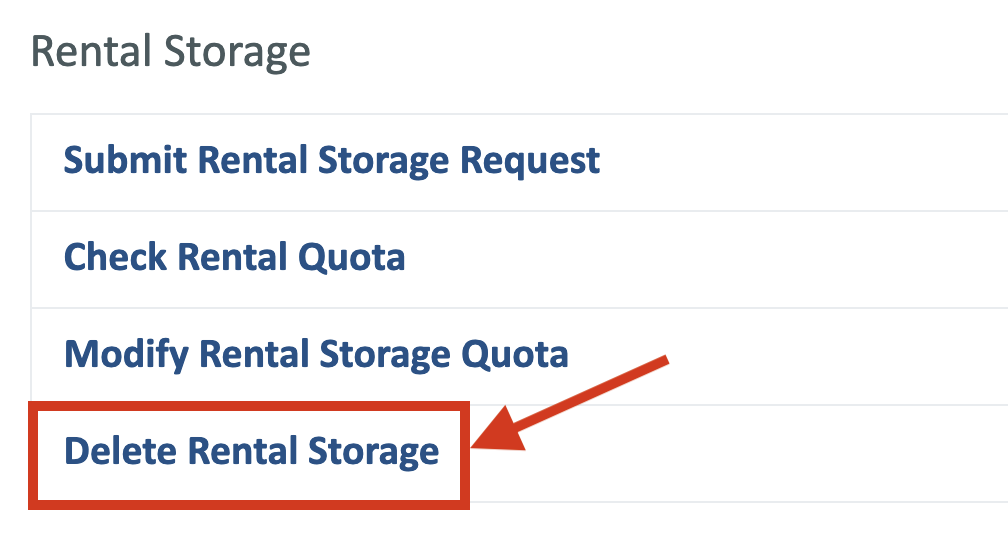
Scroll down to the section Rental Storage and click Delete Rental Storage.
-
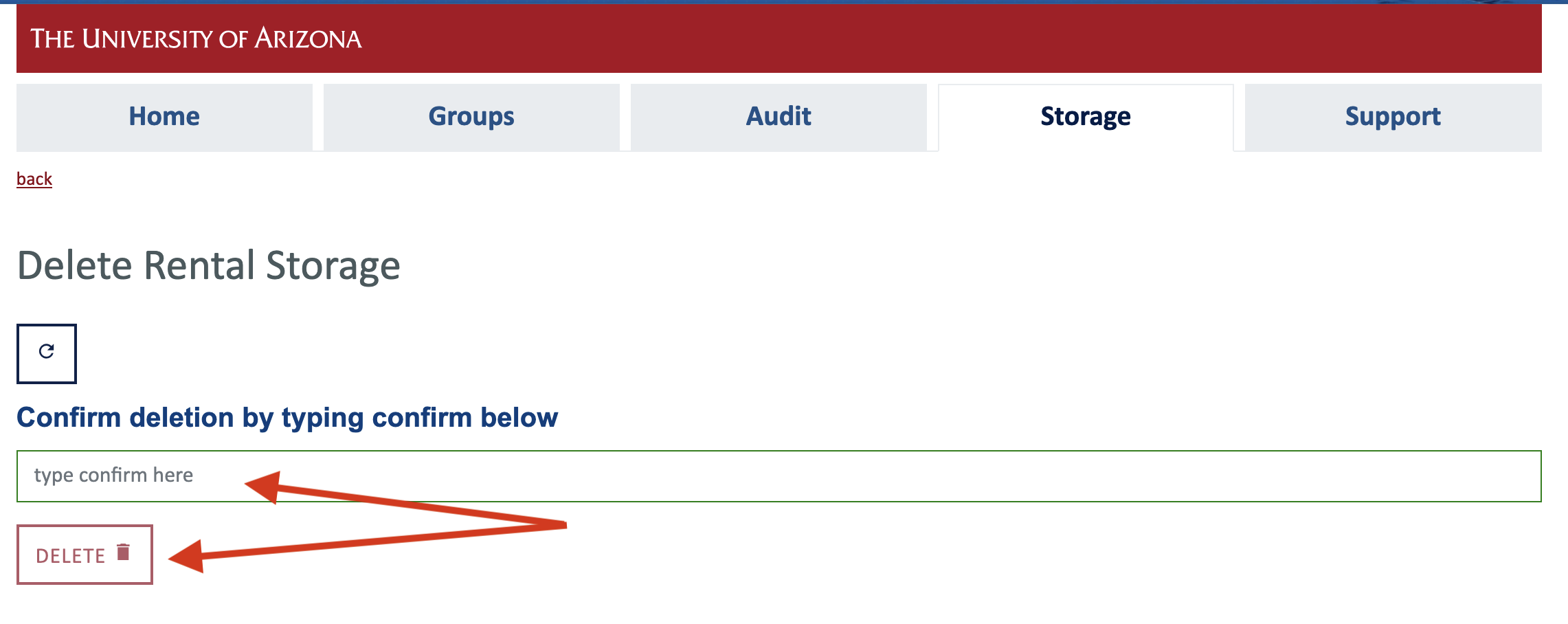
In the page that opens, type confirm in the box that says type confirm here to confirm your deletion request. Once you have confirmed, click DELETE.
Submitting a deletion request will open a ServiceNow ticket and will initiate the process of deleting your rental space and the cancellation of any automatic renewal charges to your account. The ticket will be closed and you will be notified when the process is complete.